
Loyalty and Stamp Cards
Turn Customers into Regulars
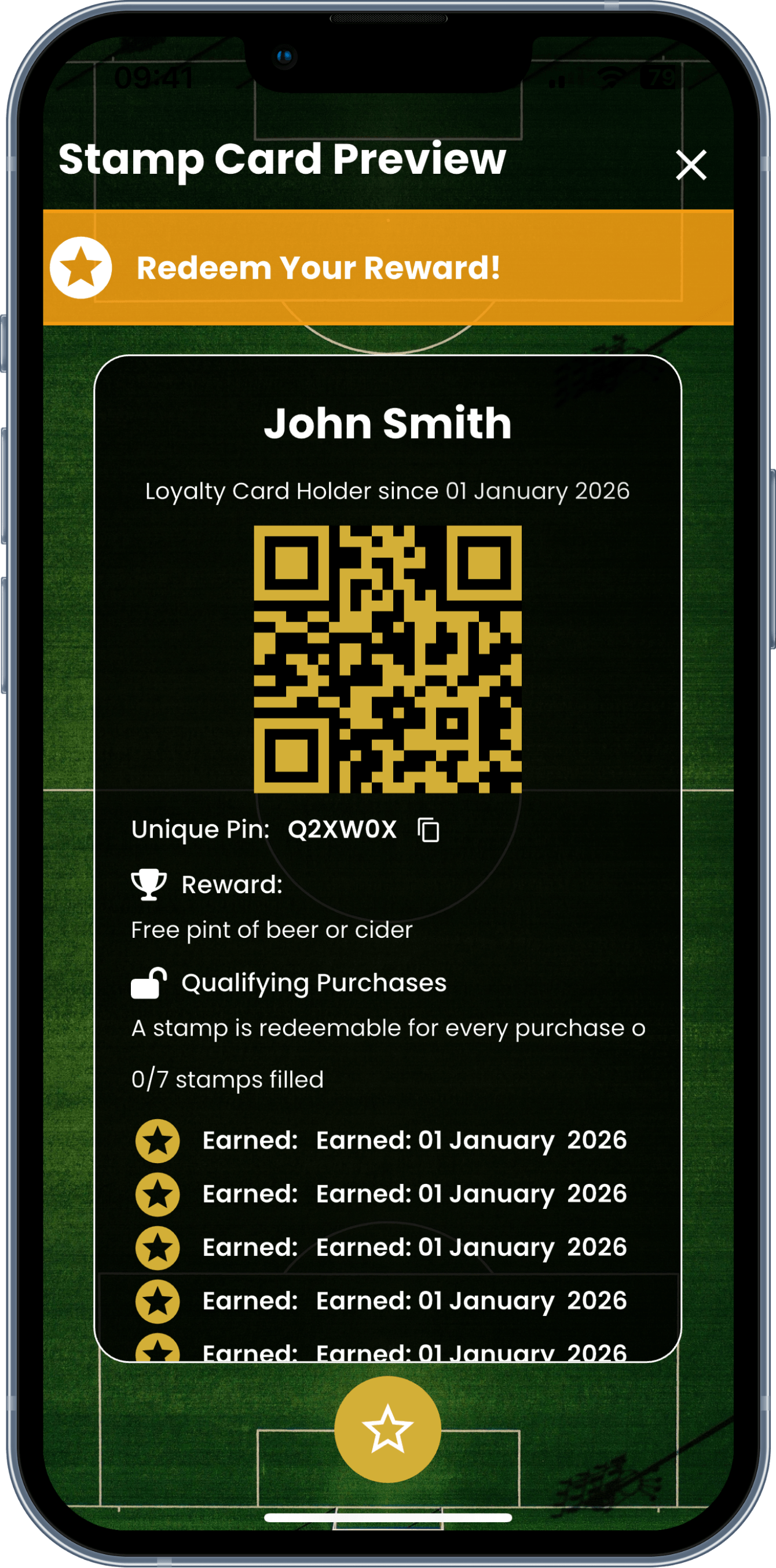
➜ Create your own digital loyalty card.
➜ Reward repeat customers.
➜ Send offers directly to members.
➜ Built for independent pubs, bars and clubs.
Incentivise Customers into Returning
Keeping regulars engaged is not as easy as it used to be. Paper loyalty cards get lost, social media posts do not always reach the right people, and great offers can easily go unseen.
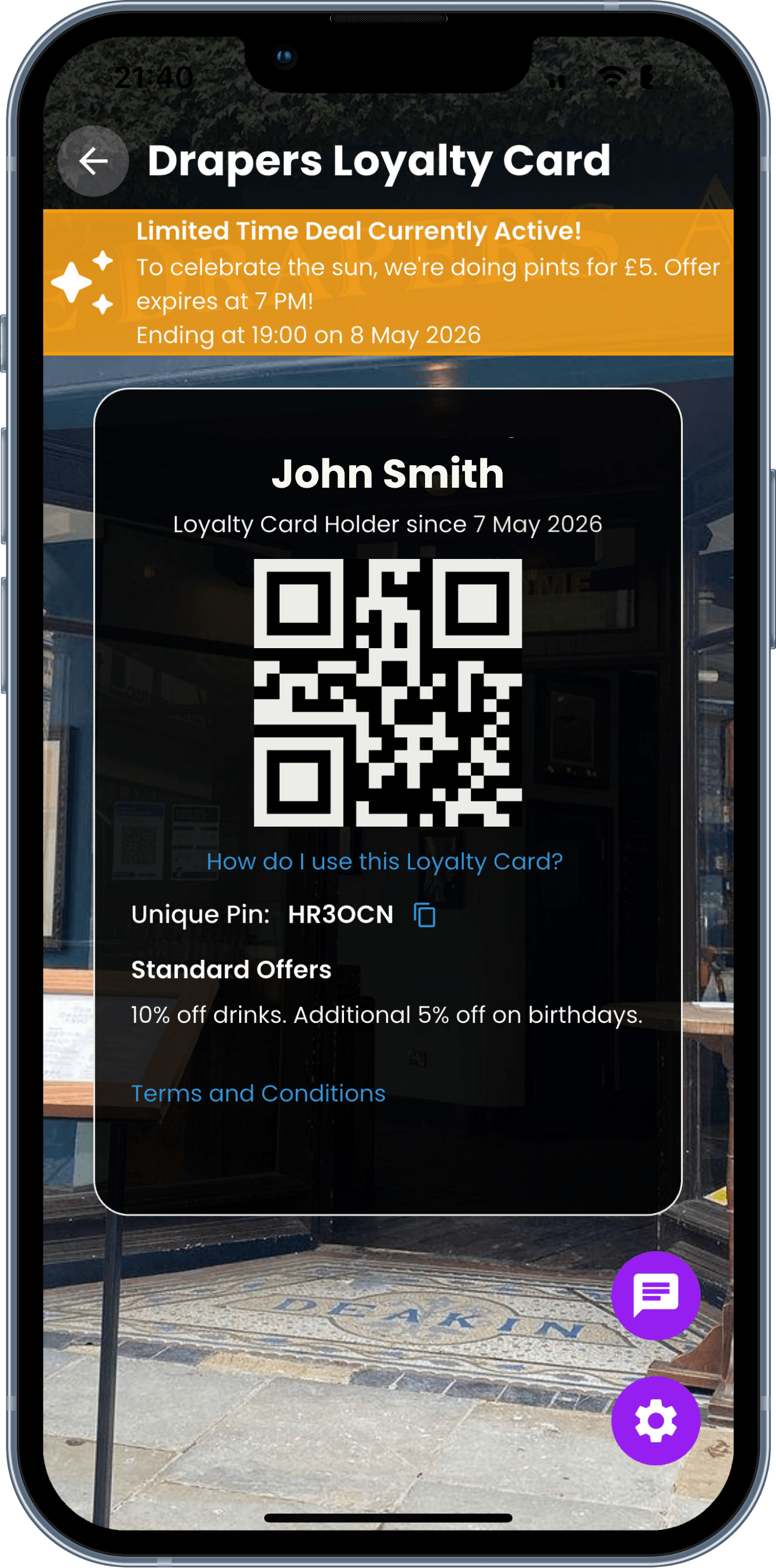
GetTogether gives independent pubs, bars and clubs a simple digital loyalty card that helps reward repeat customers, promote offers and stay connected with members directly.
Guidance for Users
-
To add a loyalty card to your wallet:
Scan the QR Code
Each loyalty card has a unique QR code. You can get this from the venue or by scanning an existing member’s loyalty card.Open the QR Scanner
In the Loyalty Card Wallet, tap the QR icon in the top-right corner to open the QR scanner.Submit a Membership Request
After scanning the QR code, you’ll be prompted to submit a membership application.Wait for Venue Approval
The venue will receive your application, which includes basic details such as your name, profile picture and email address. The venue will then approve or reject your request.Access Your Loyalty Card
If your application is approved, the loyalty card will appear in your Loyalty Card Wallet.
-
To add a loyalty card to your wallet:
Enter the Unique Code
Each loyalty card has a unique, 6-digit number. You can get this from the venue or an existing loyalty card member.Insert the Code and ‘Join’
Simply insert the code in the text box and click ‘Join’.
Wait for Venue Approval
The venue will receive your application, which includes basic details such as your name, profile picture and email. The venue can then approve or reject your request.Access Your Loyalty Card
If approved, the loyalty card will appear in your Loyalty Card Wallet.
-
There are two levels of loyalty card memberships:
Standard Member
Anyone who adds a venue’s loyalty card automatically becomes a Standard Member. You’ll have access to the venue’s standard deal, which is the same for all customers.Exclusive Member
Some venues reward their most loyal customers with Exclusive Membership. Exclusive Members receive special deals that are unique and personalised.
How to tell your membership level
If you’re an Exclusive Member, you’ll see a ⭐ star icon above your name on your loyalty card.
Guidance for Venues
-
Each venue can have one active loyalty card at a time.
To view your loyalty card, go to your Wallet and open your Loyalty Card.
To create a new loyalty card, tap the icon in the top-right corner of the Wallet and follow the on-screen instructions.
Once your card is set up, you can display your QR code or Unique Code for customers to add.
If using the QR Code, we recommend printing and displaying it on your bar so customers can easily scan.
Alternative, you can post your unique, 6-digit code online for customers to join.
-
When a customer scans your loyalty card QR code or submits the unique code, you’ll receive a membership request.
Open your Loyalty Card and go to the Member Requests tab.
Review each request and approve or decline as needed.
Once approved, the loyalty card will appear in the customer’s wallet, and they’ll have access to your standard deal.
-
All approved members automatically receive your standard deal.
To give a member access to exclusive deals, tap the (i) icon next to their name.
From there, you can turn Exclusive Deals on or off.
Exclusive members will see a ⭐ star above their name in the app.
-
To make changes to your loyalty card:
Go to the Edit tab on your loyalty card page.
From here, you can:
Update your standard deal
Change the background of the loyalty card
Edit your terms and conditions
Note: Exclusive deals are managed individually on each member’s page and cannot be edited in the general card settings.